Getting Started with BankKing
Registering a new client
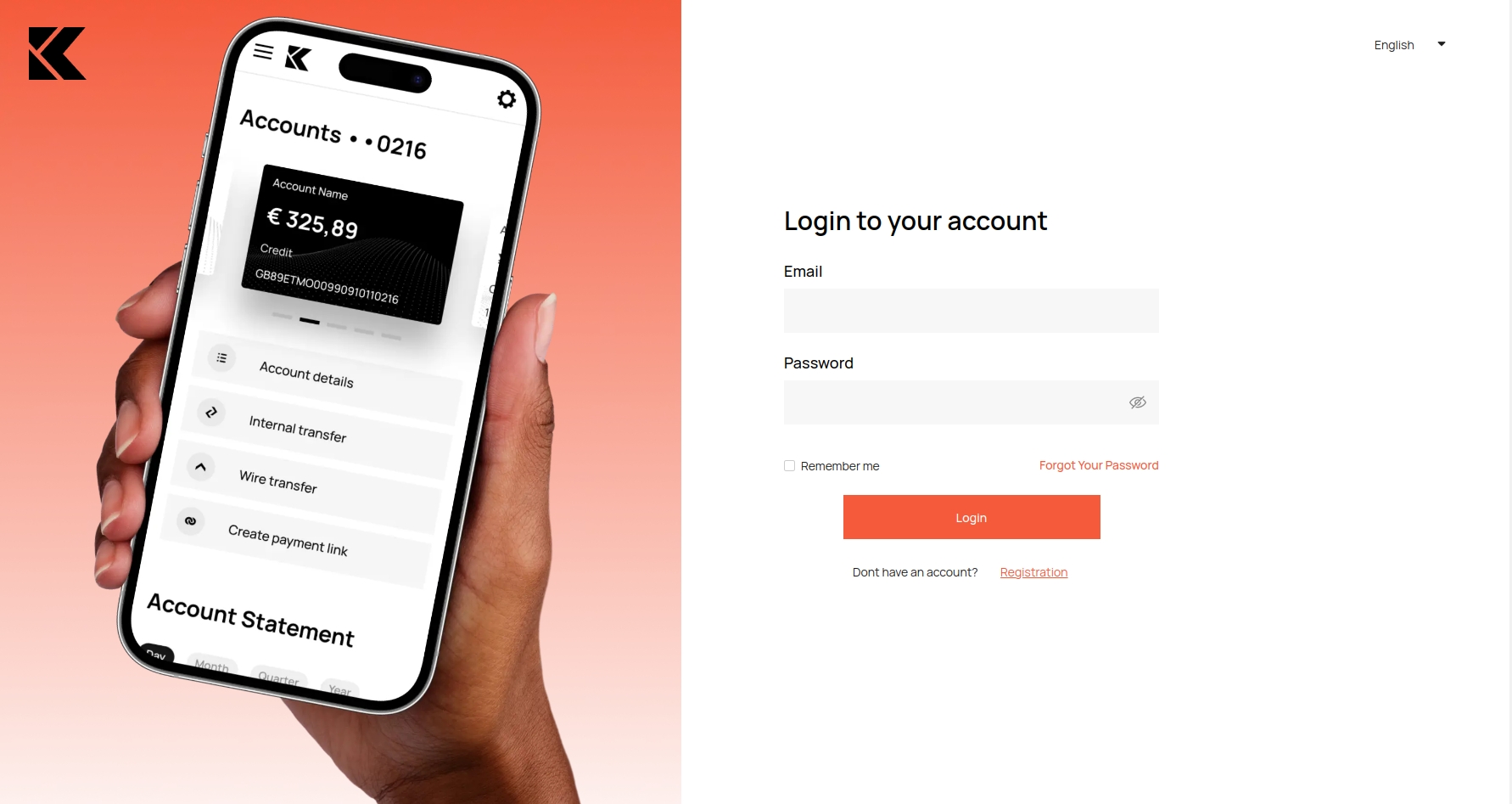
To create a new user, click on the
Registration. ВYou will be taken to the new user registration page.
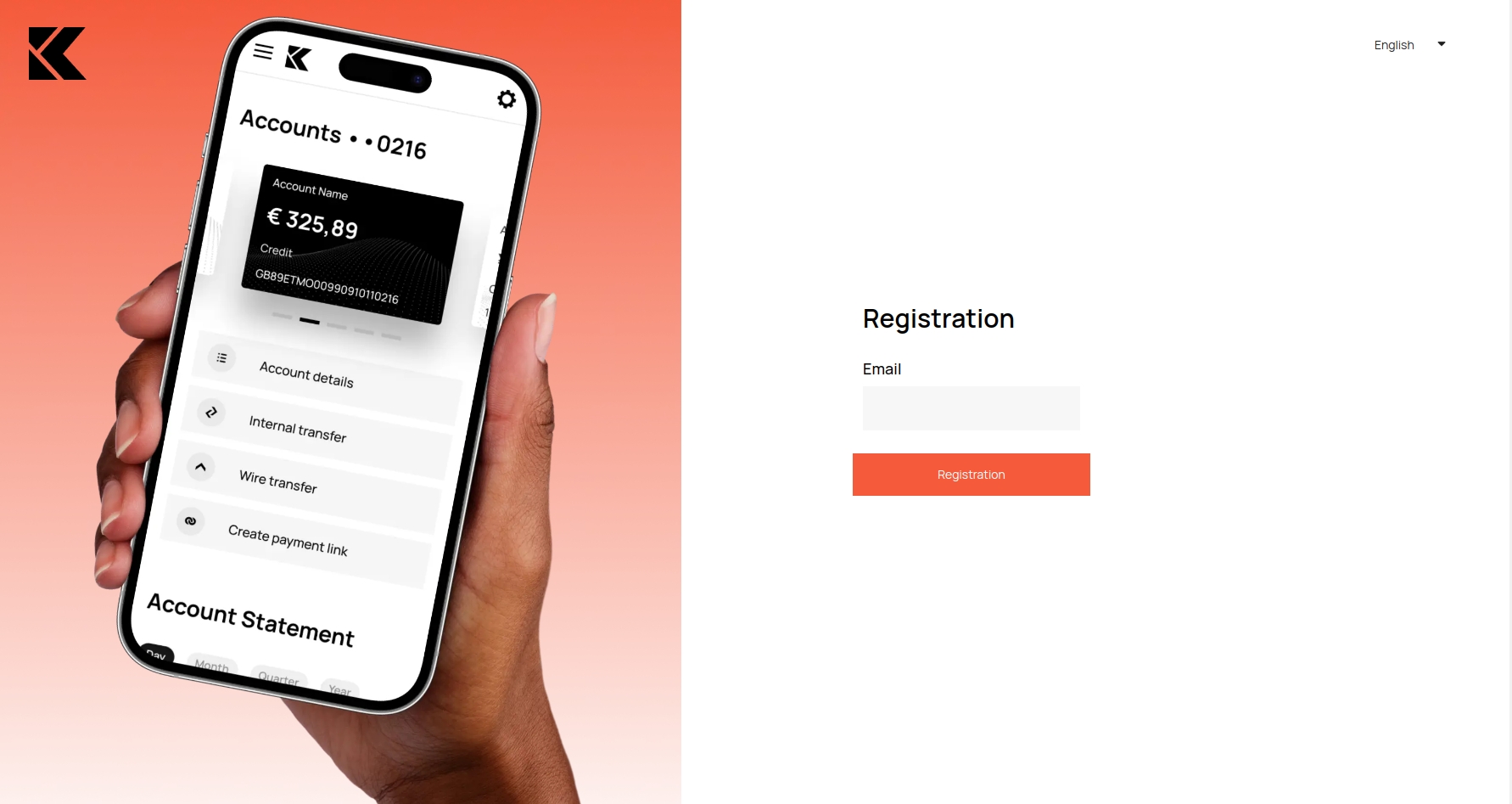
You need to specify the e-mail address and click the
Registration.
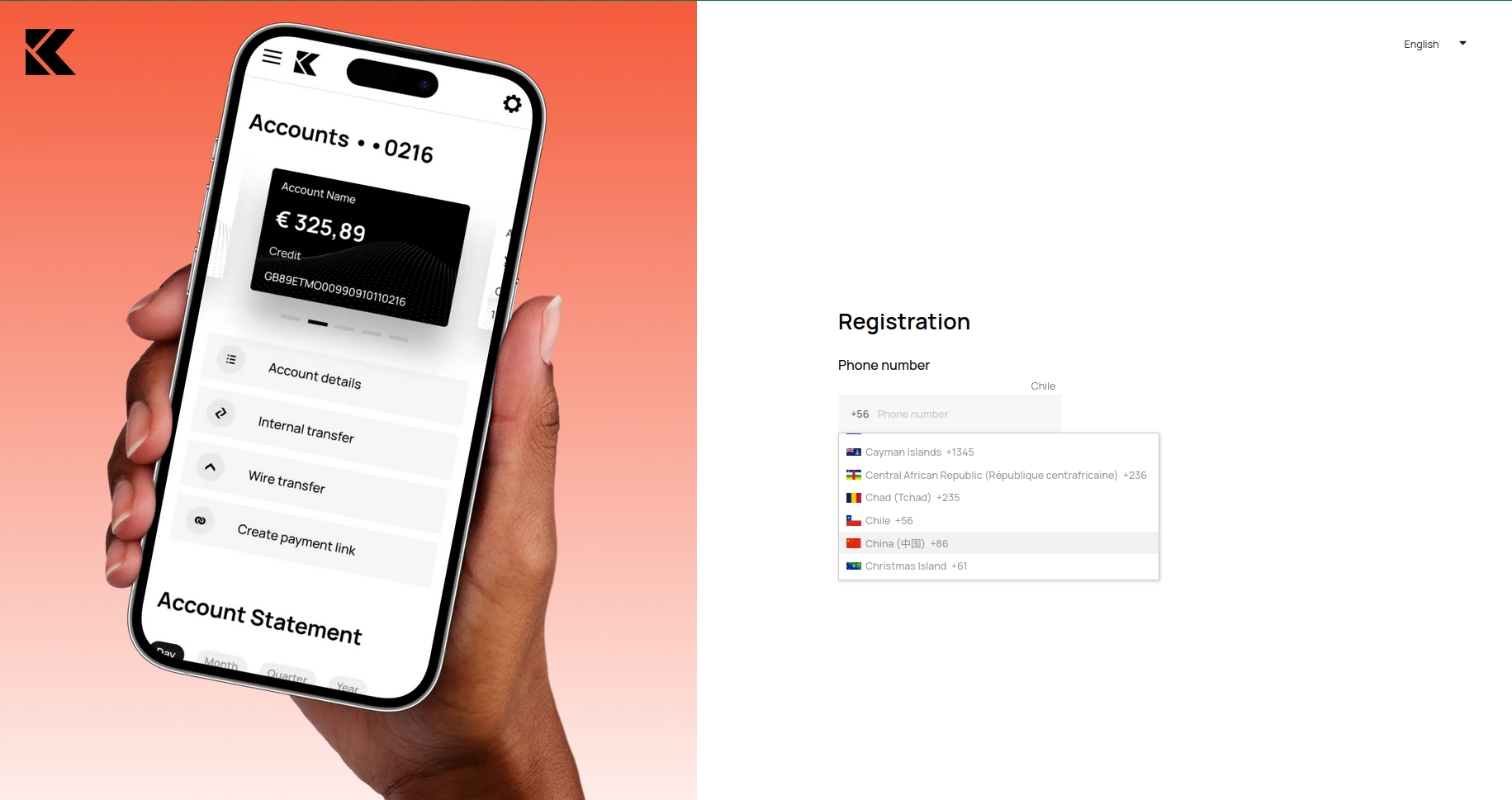
Select the country code and specify the phone number.
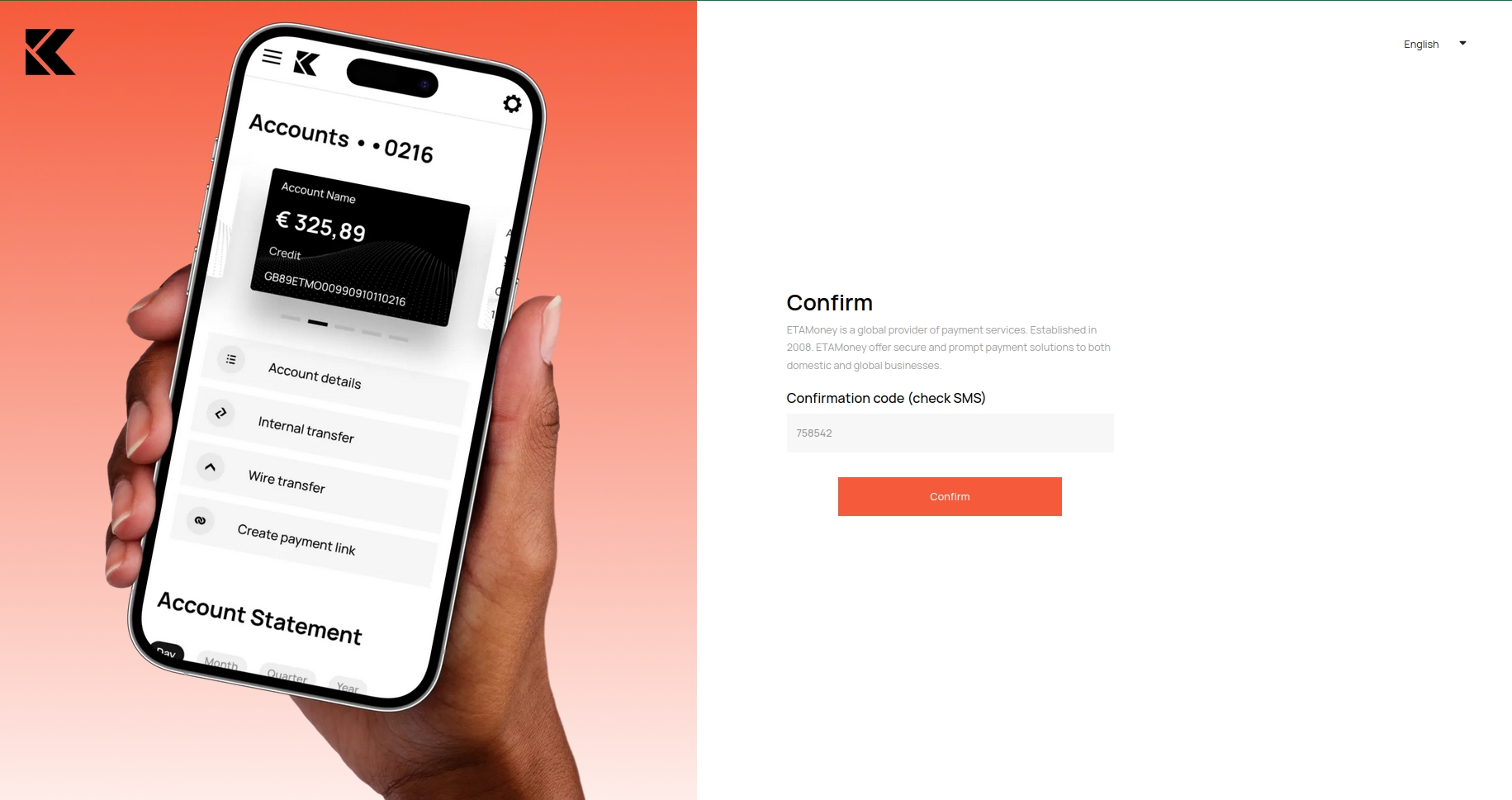
After entering, an SMS-code will be sent to the specified number, which must be entered.
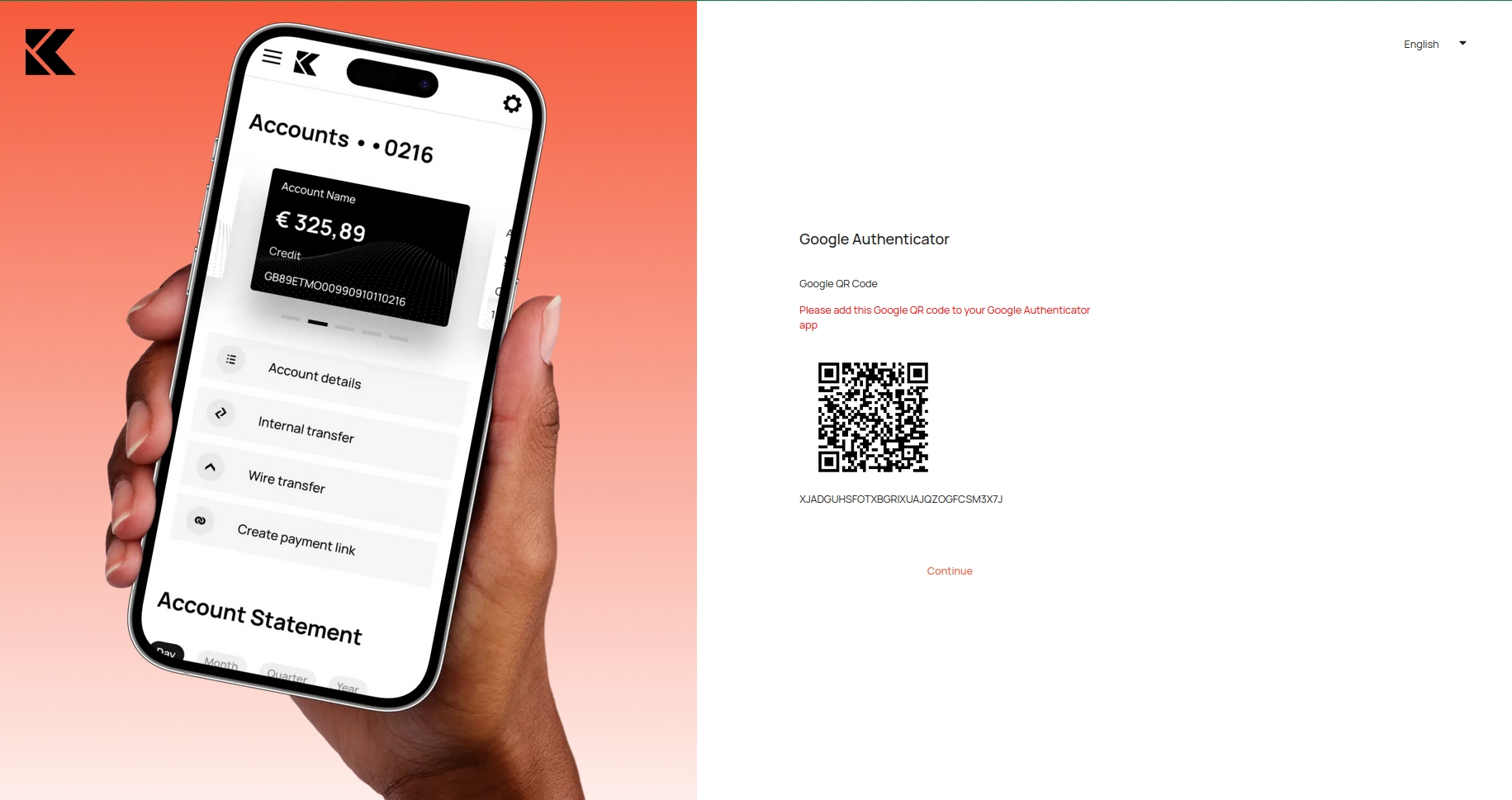
Google QR Code will appear on the screen, add it for 2FA authentication in the Google Authenticator app.
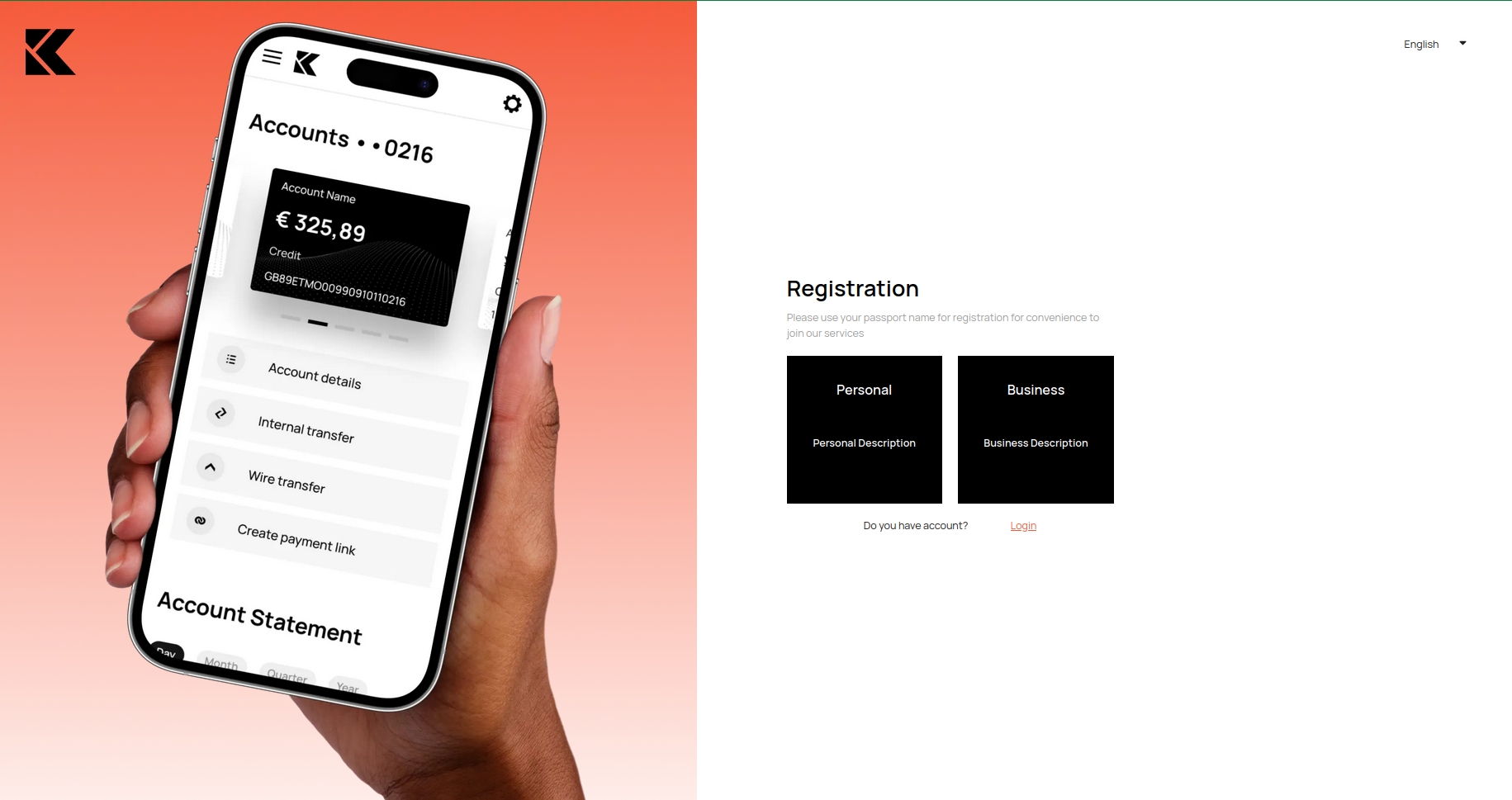
Select the profile type
PersonalorBusiness
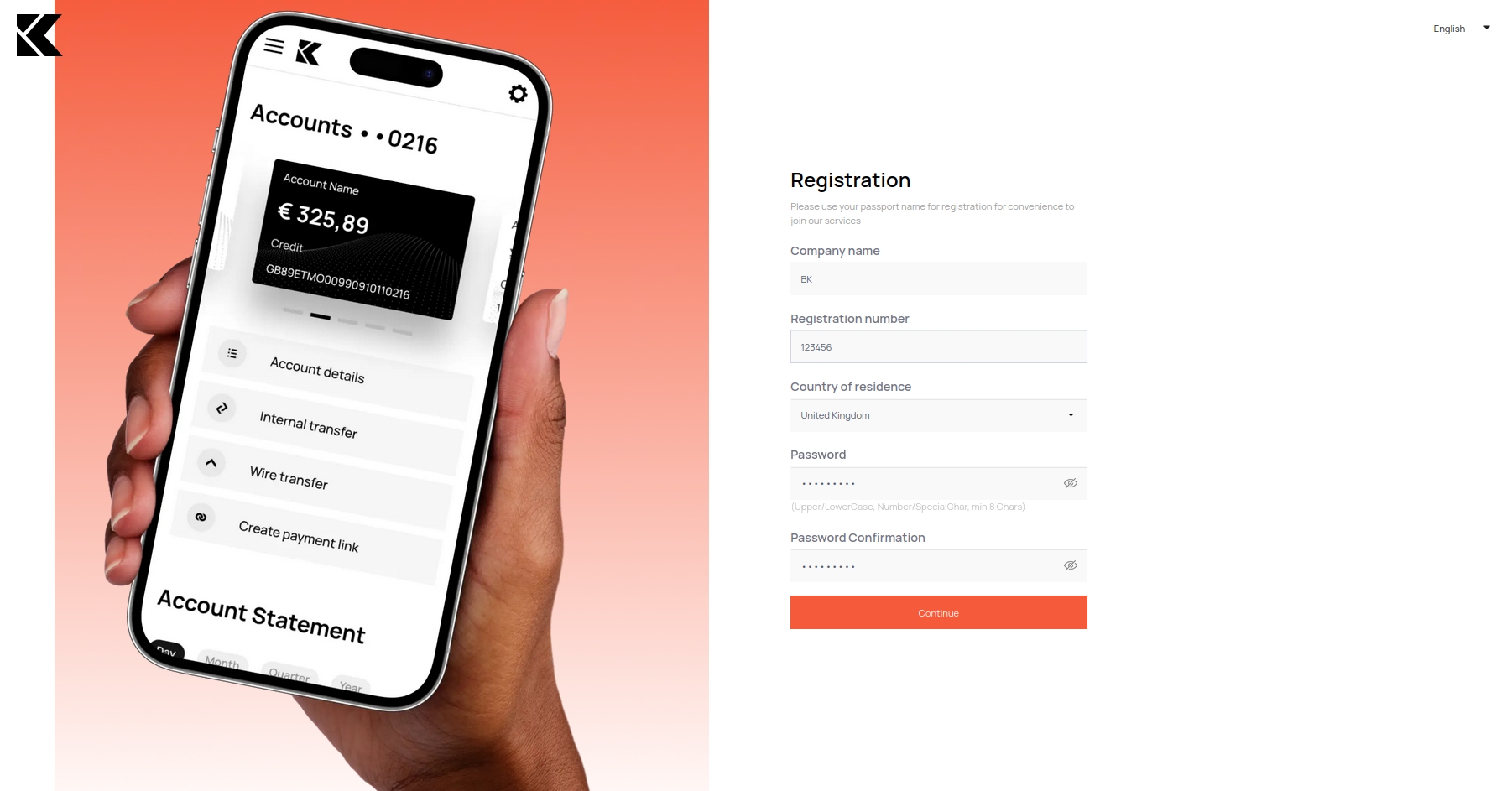
Fill in all the fields and come up with a password.
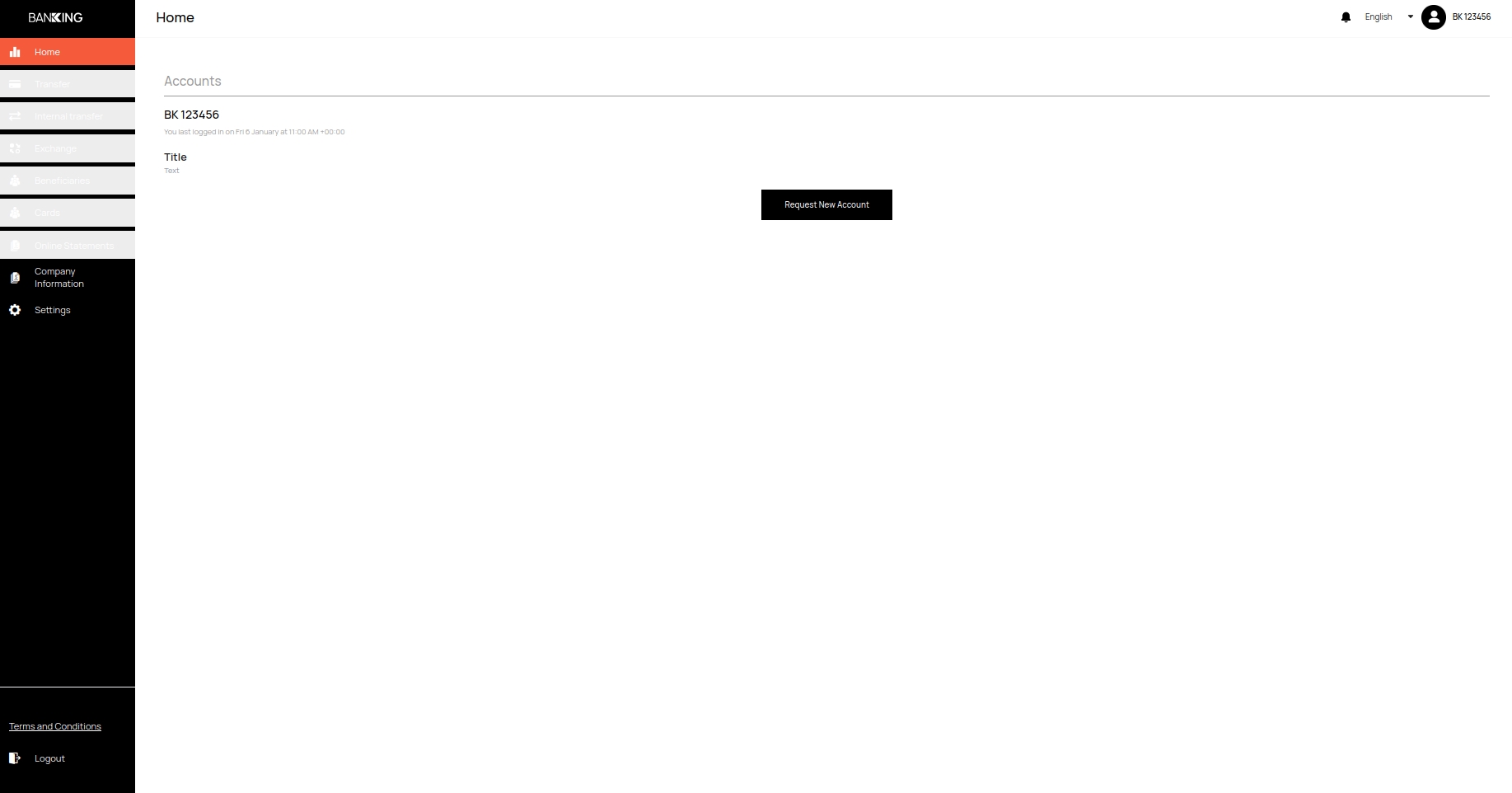
You have gained access to the personal account of your business account, to continue working, fill out the questionnaire and attach the necessary documents.
Filling out company information, attaching files.
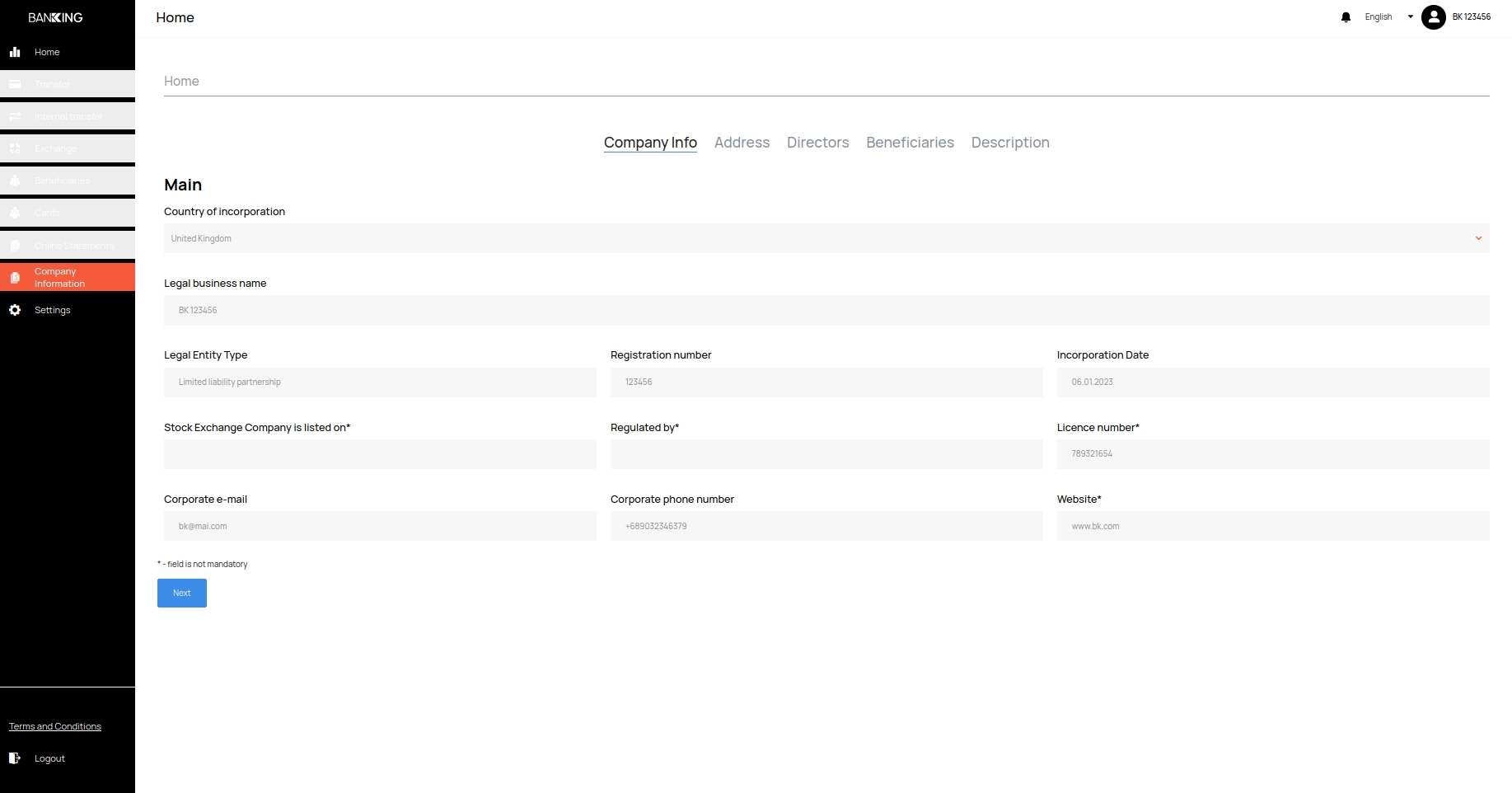
To start filling out company information, select Company information from the menu on the left.
Fill in the
Company infoand clickNext.
Caution
All fields are required!
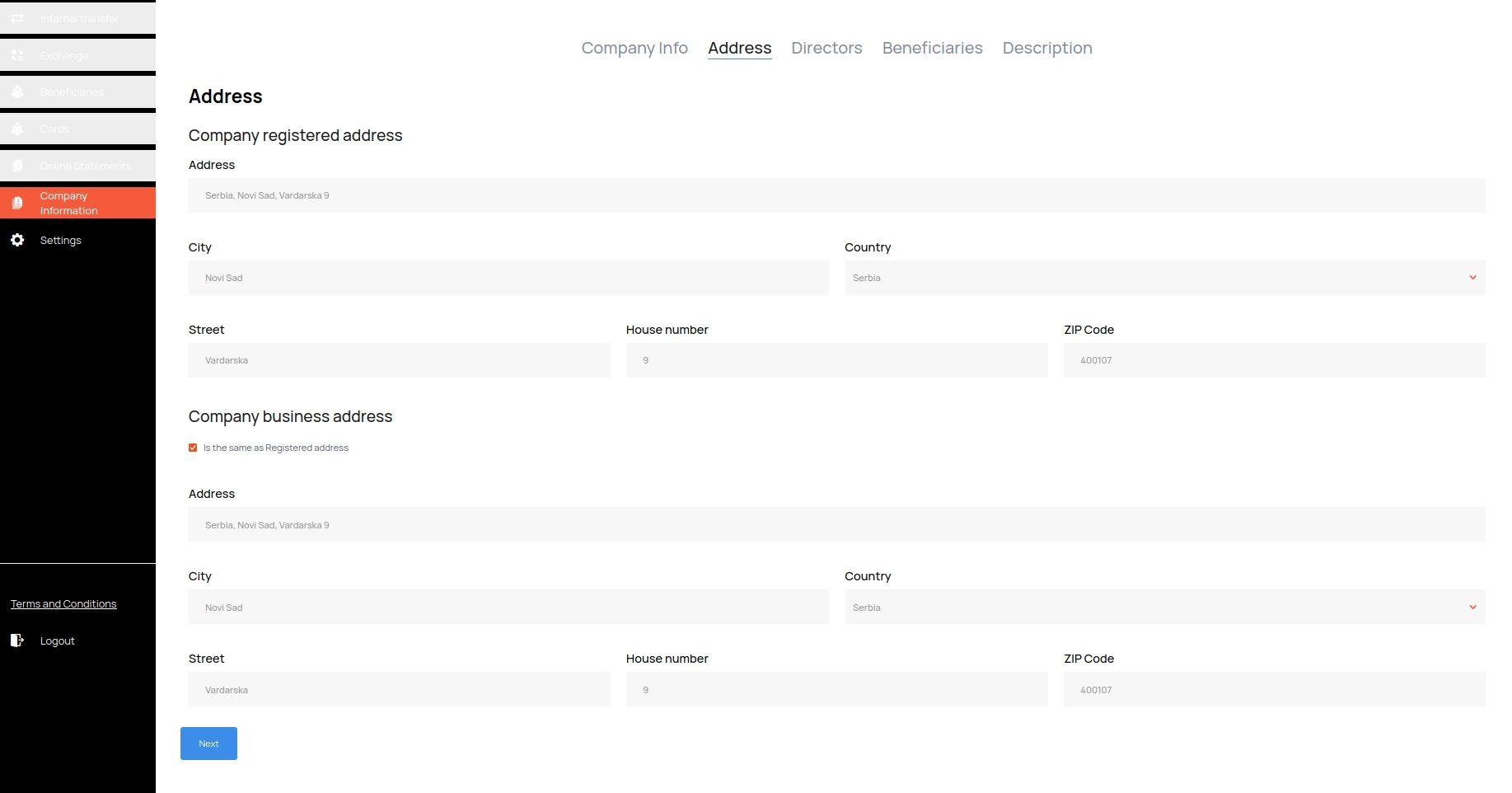
Fill in the
Address. If your registration address matches your business address, just check the box, all data will be automatically duplicated, in this case all further changes in the registration address will be duplicated in the business address fields. After filling in, clickNext
Caution
All fields are required!
In the
Directors, fill in the information about the director.
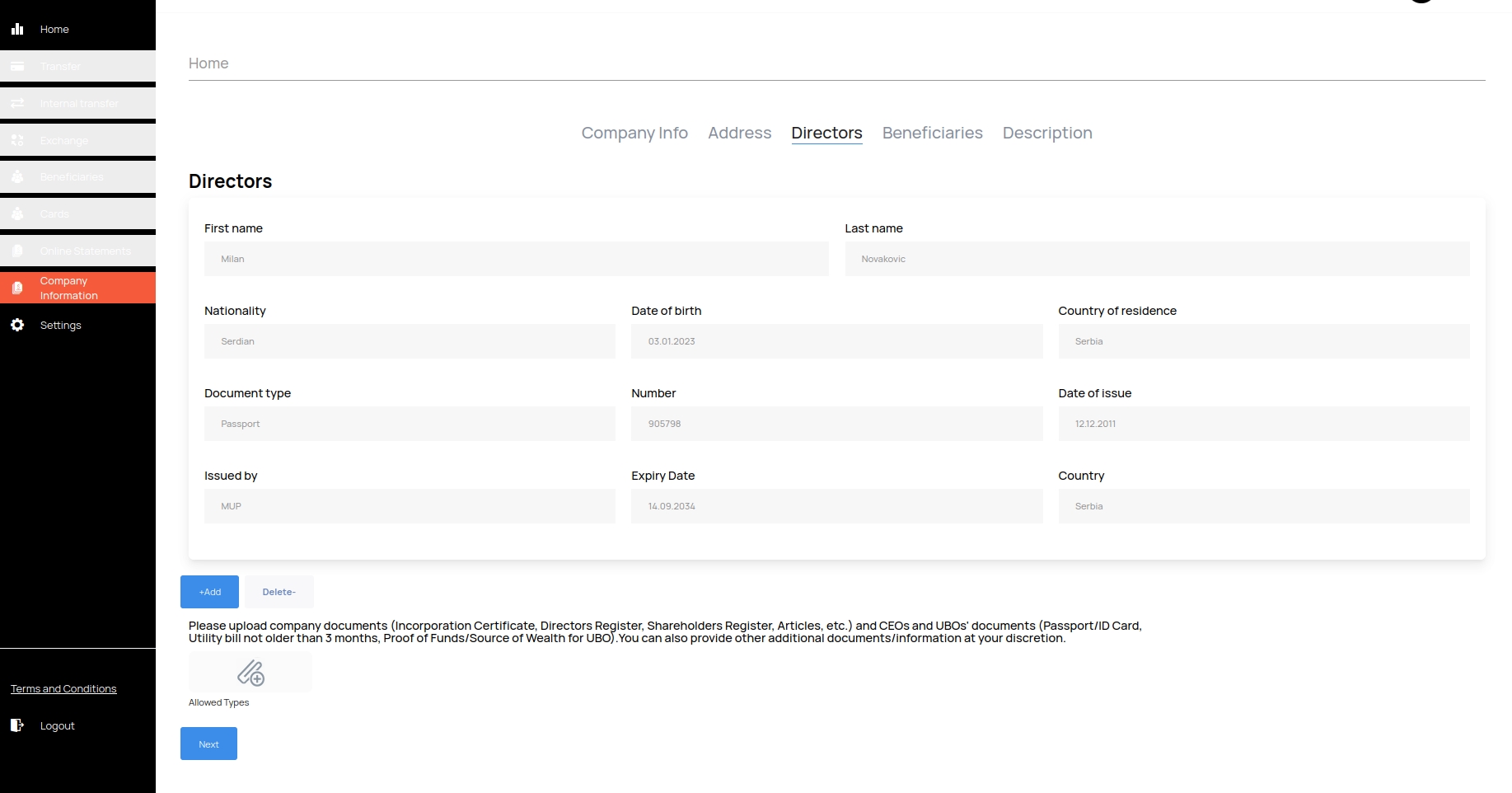
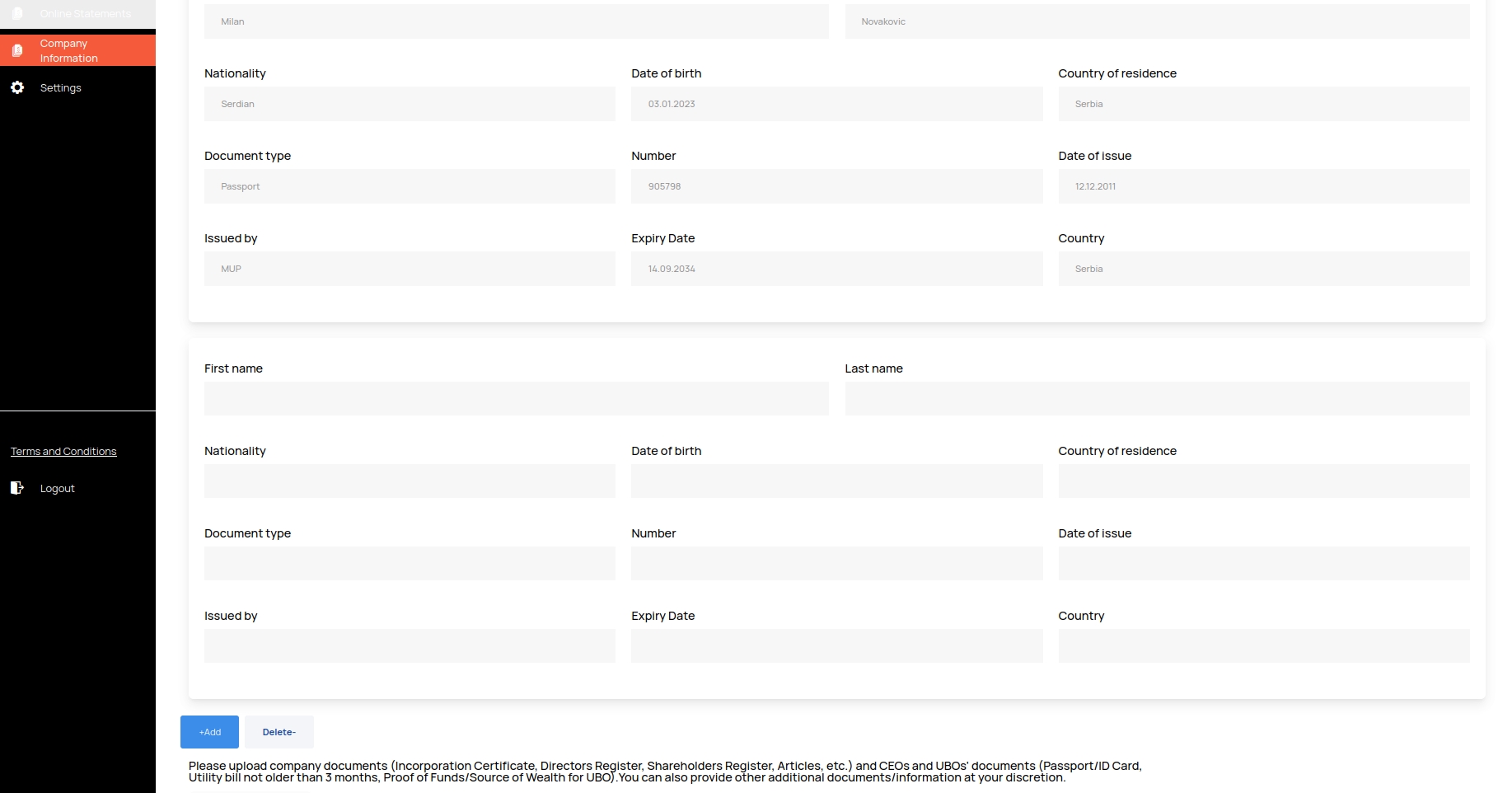
If there are several directors, then clicking the
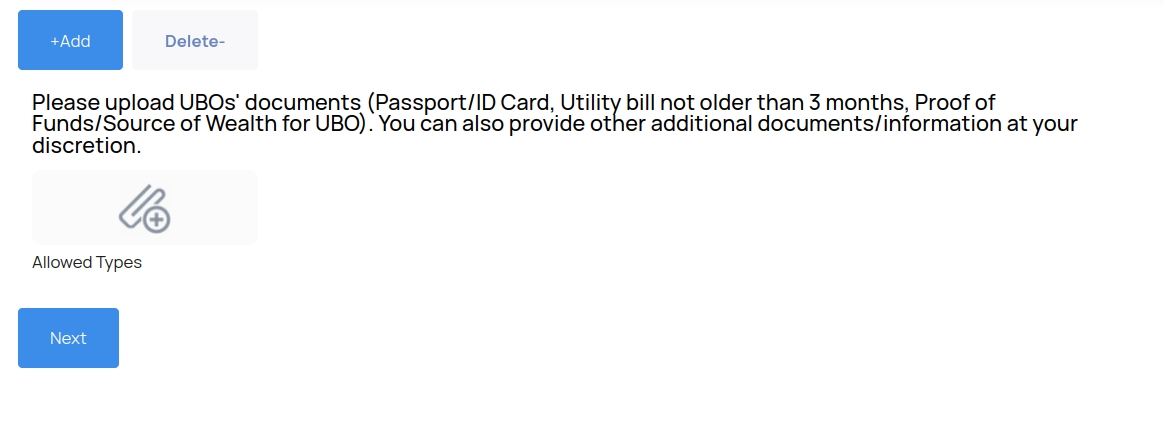
+Addwill open a filling form for the next director. If the second form was added by mistake, click on theDeleteto remove it
To add the required documents, click on the picture with the violin. A selection window will appear, find the necessary files and add them, you can also return to adding files later, without forgetting to save all the data on the
Descriptiontab to theSave draft. Fill in the tab and clickNext.
Caution
All fields for the first director are mandatory. You can only upload files of the specified formats
In the
Beneficiariestab, fill in the information about the beneficiaries. If there are several of them, then when you click the+Addbutton, a filling form for the next beneficiary. If the form was mistakenly added, click theDeletebutton to remove it
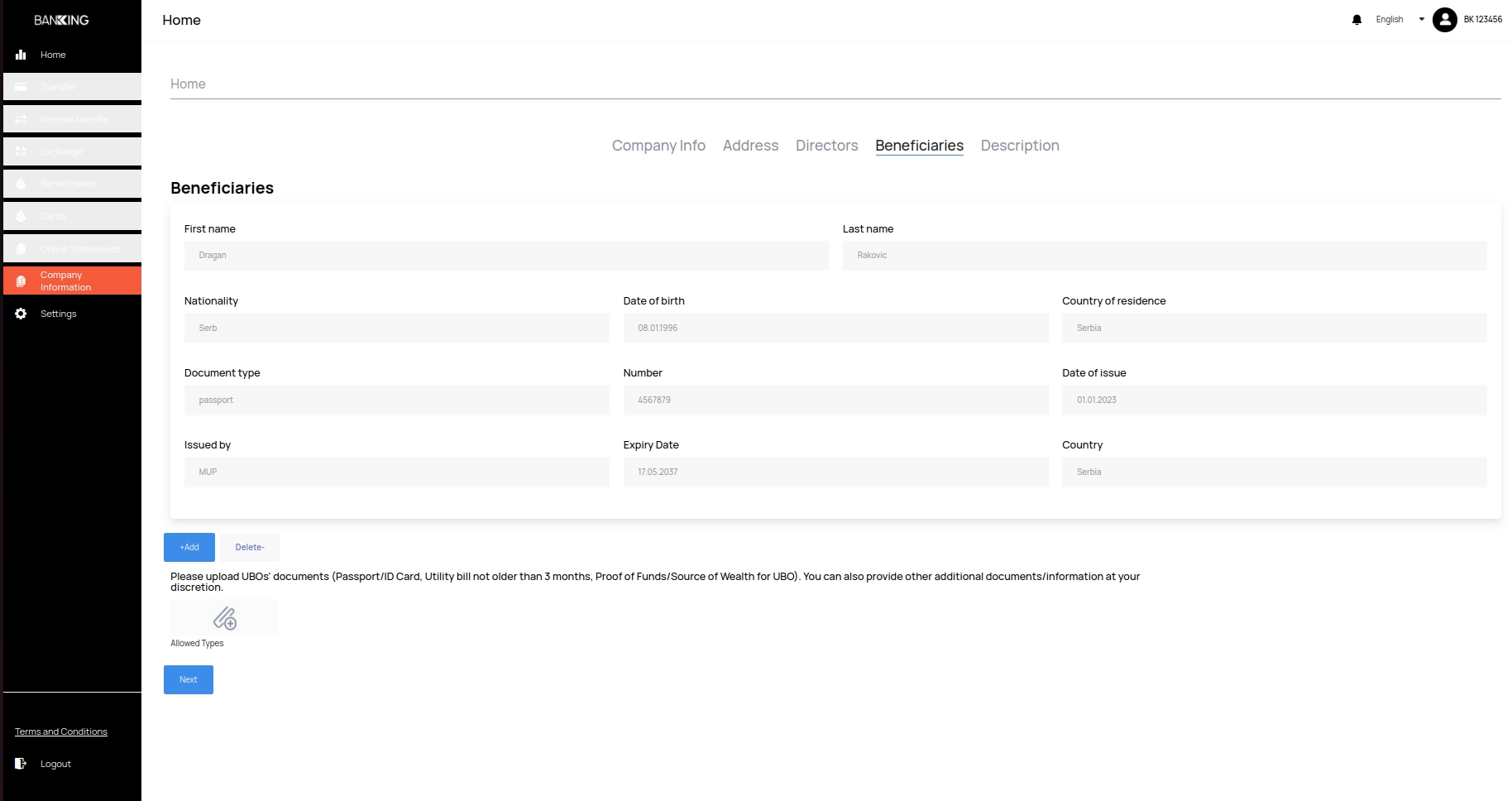
To add the required documents, click on the picture with the violin. A selection window will appear, find the necessary files and add them, you can also return to adding files later, without forgetting to save all the data on the
Descriptiontab to theSave draft. Fill in the tab and clickNext.
Caution
- All fields for the first beneficiary are mandatory.
You can only upload files of the specified formats
In the
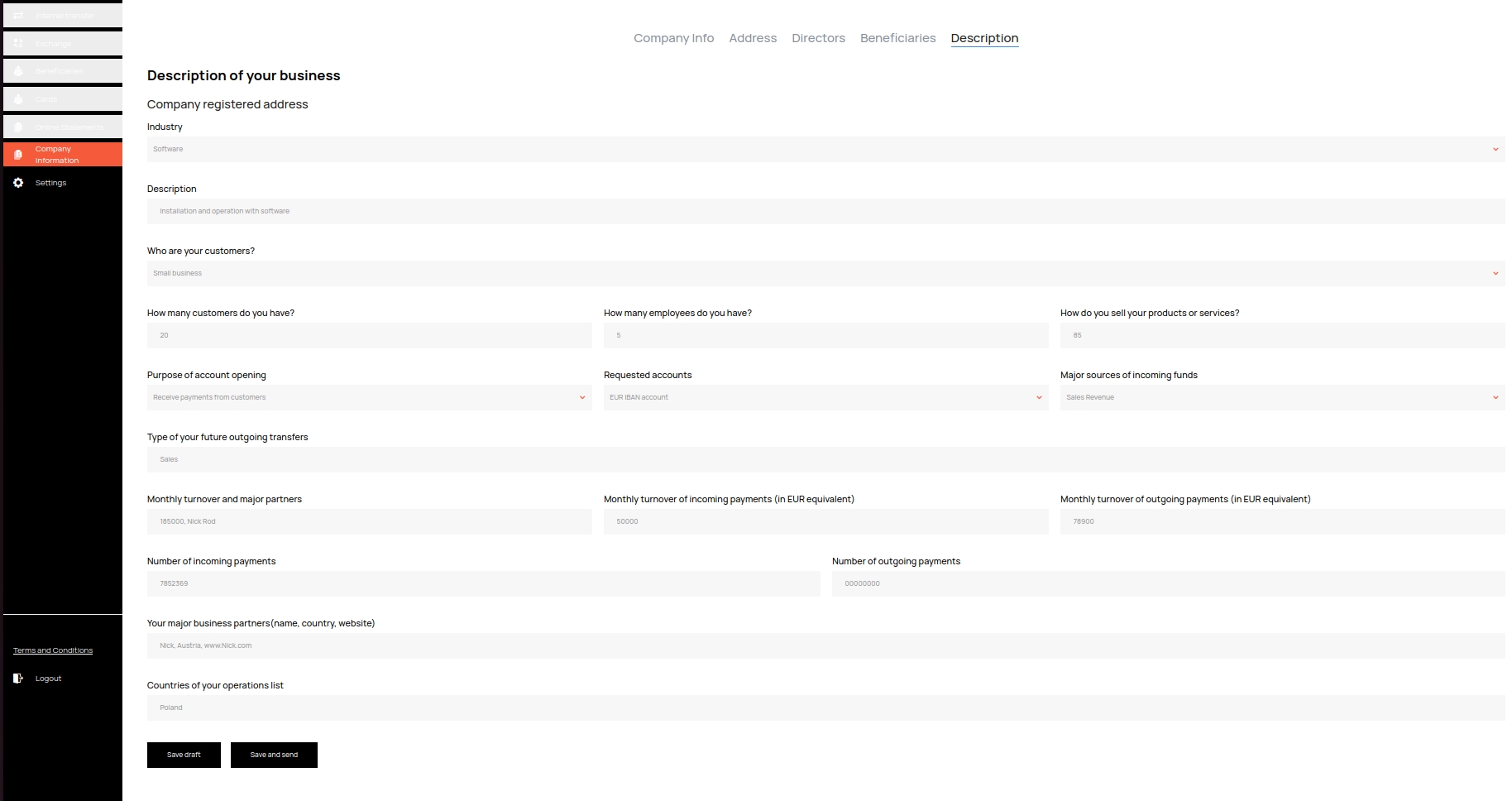
Descriptontab, fill in all the fields. After filling out the form, clickSave draftto save the form and return to it later, or clickSave and sentto send the form to the bank.
Request to open an account in a currency (one, second account), receive an IBAN.
To send a request to open a bank account, you need to go to the
Hometab in the side menu. On the tab that opens, click on theRequest New Accountbutton.
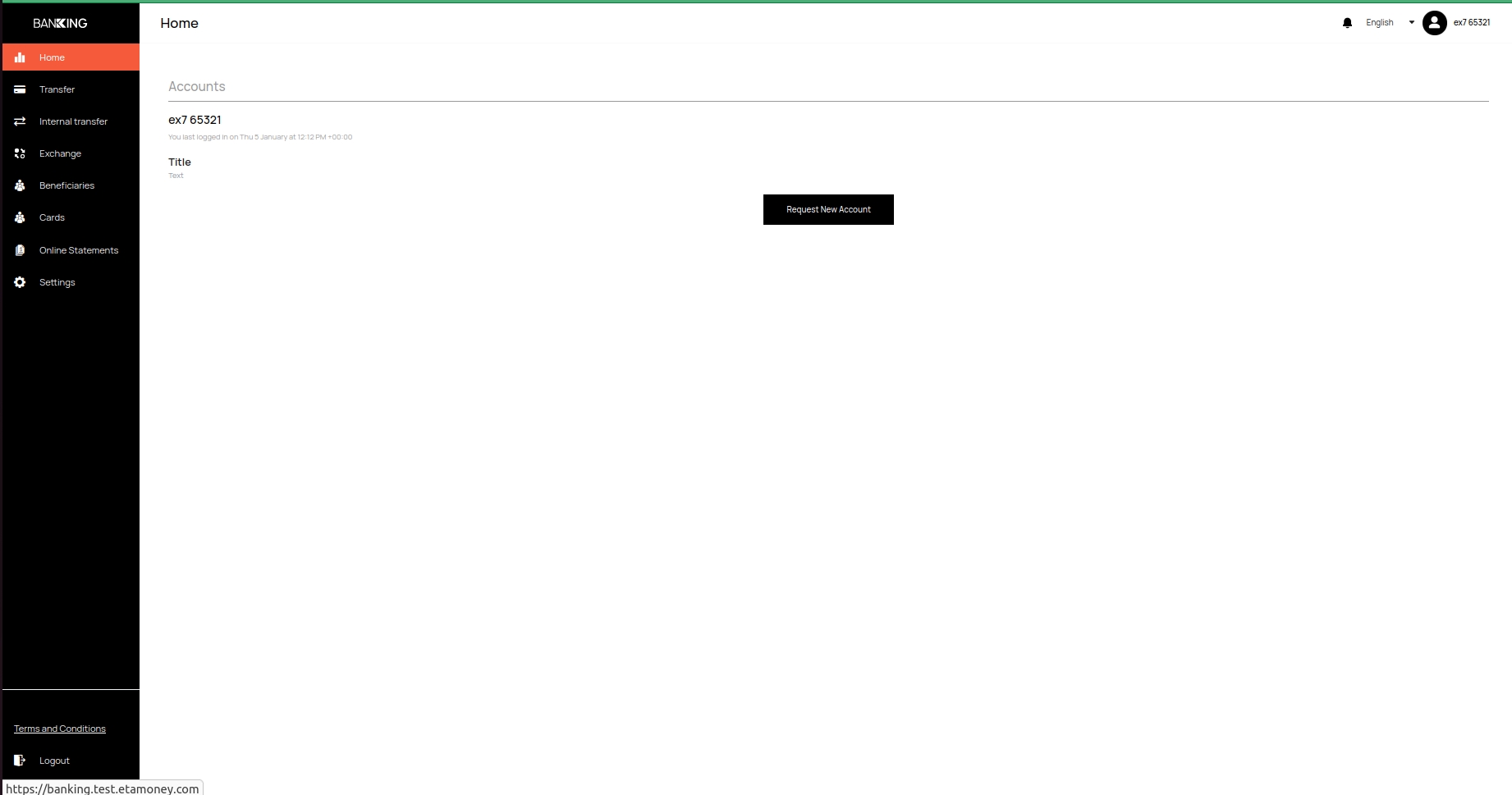
Select the account currency.
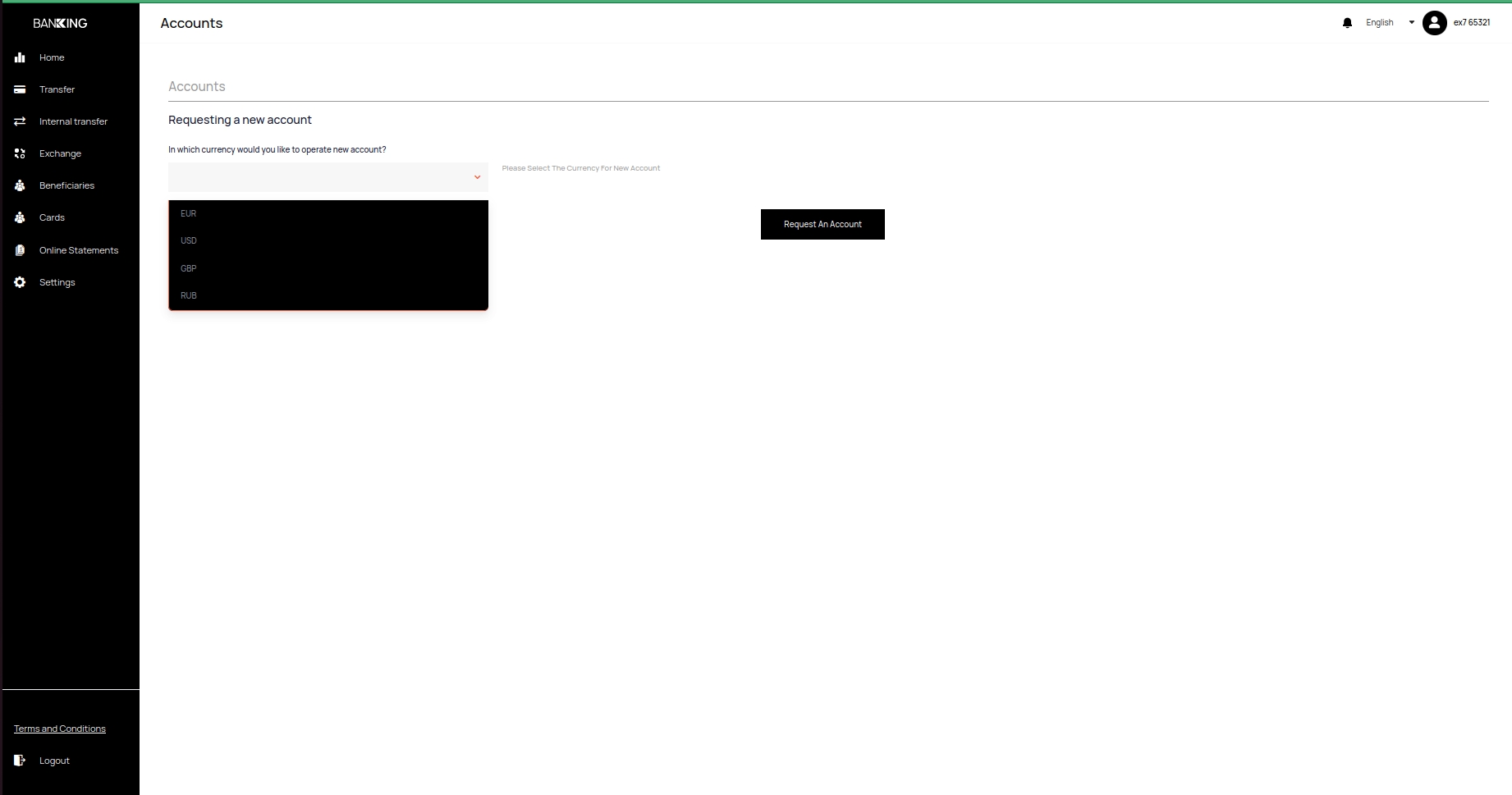
Confirm your choice by clicking on the
Request An Accountbutton.
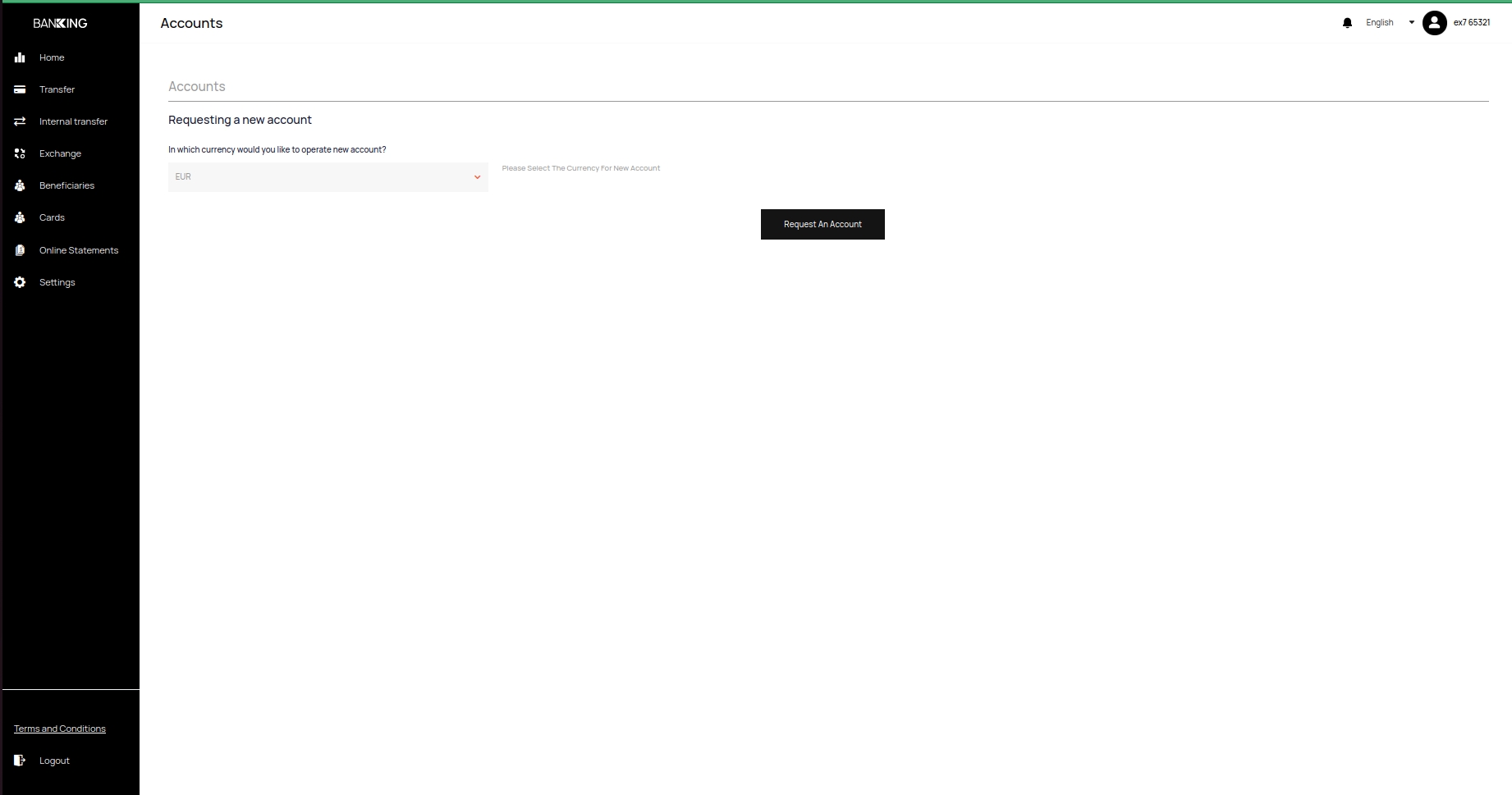
After confirmation, you will see your account in this tab