Settings
Mail verification
To verify the mail, click on the profile button in the upper right corner and select
Settings
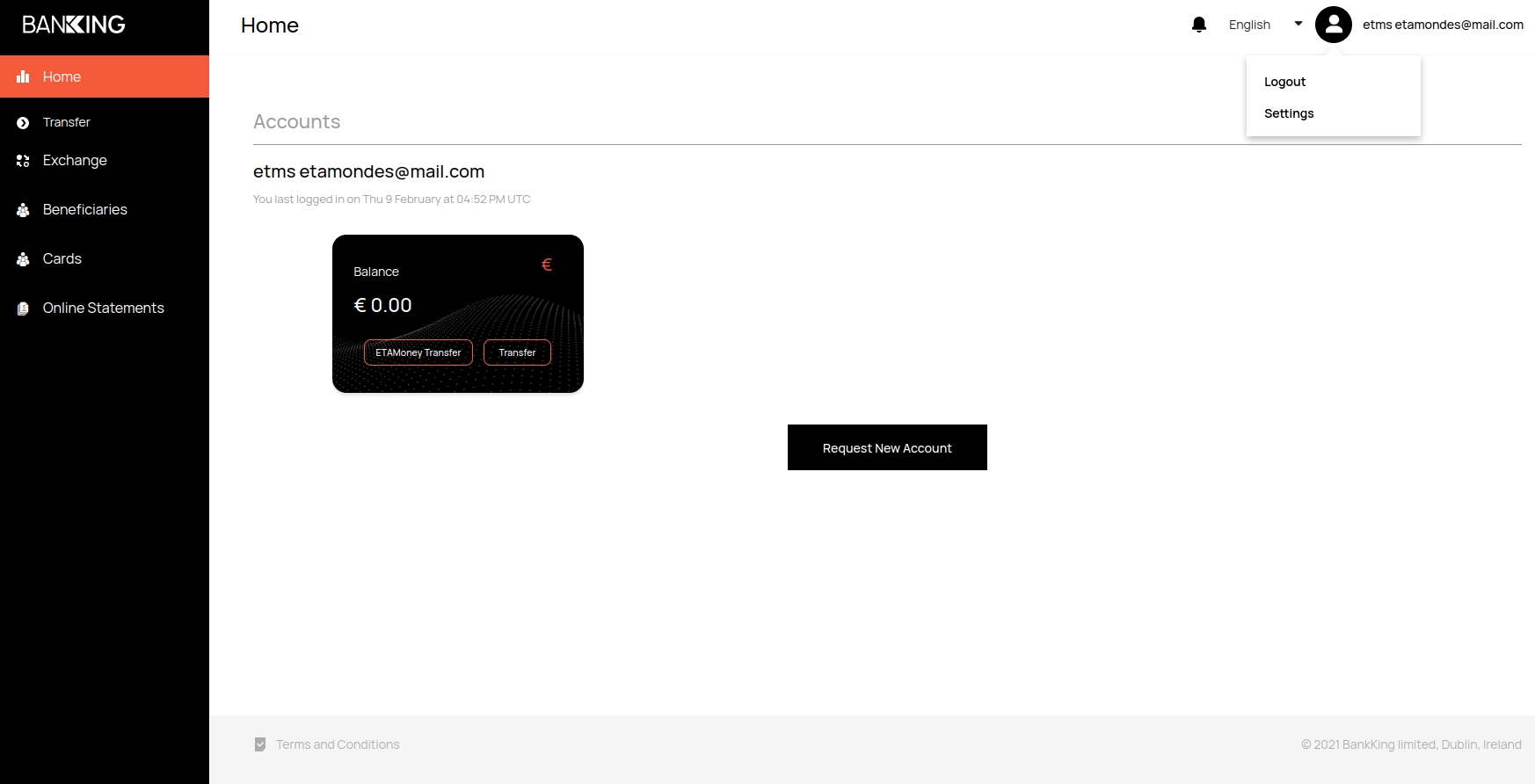
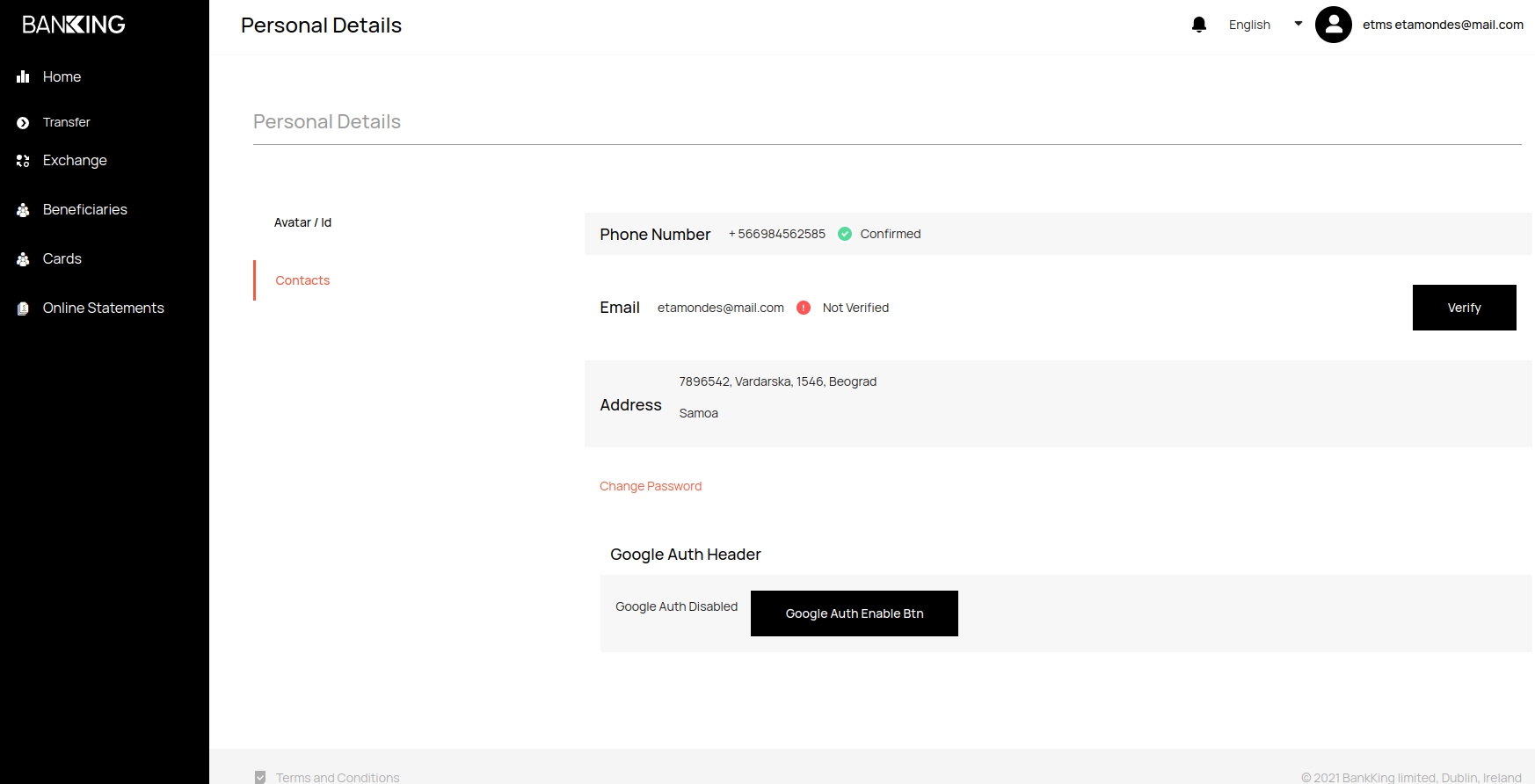
On the
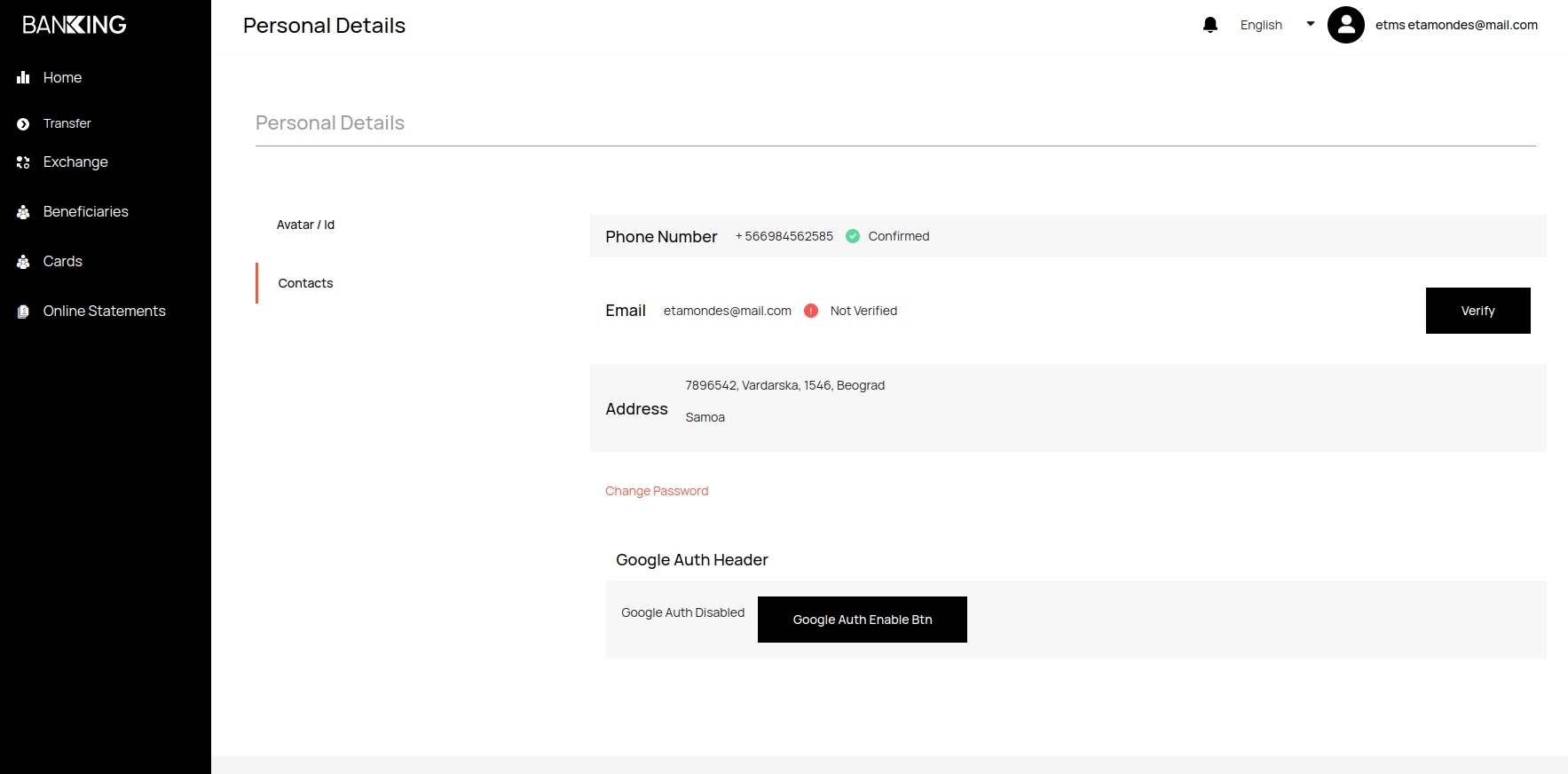
Personal Detailstab, selectContactsand click on theVerifybutton
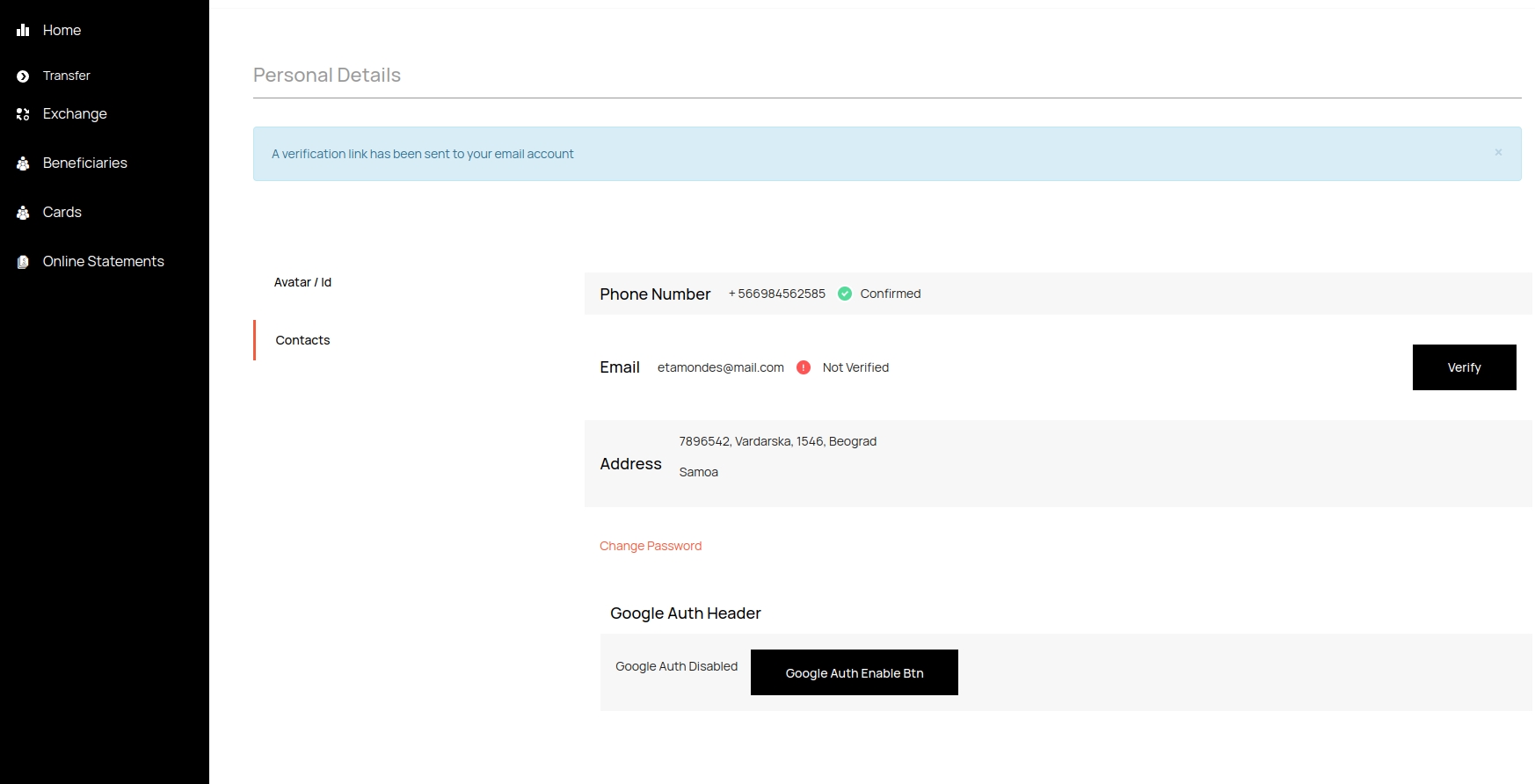
After successfully sending the email, you will receive a message in your personal account
Password change
To change your password, click on the profile button in the upper right corner and select
Settings
On the
Personal Detailstab, selectContactsand clickChange password
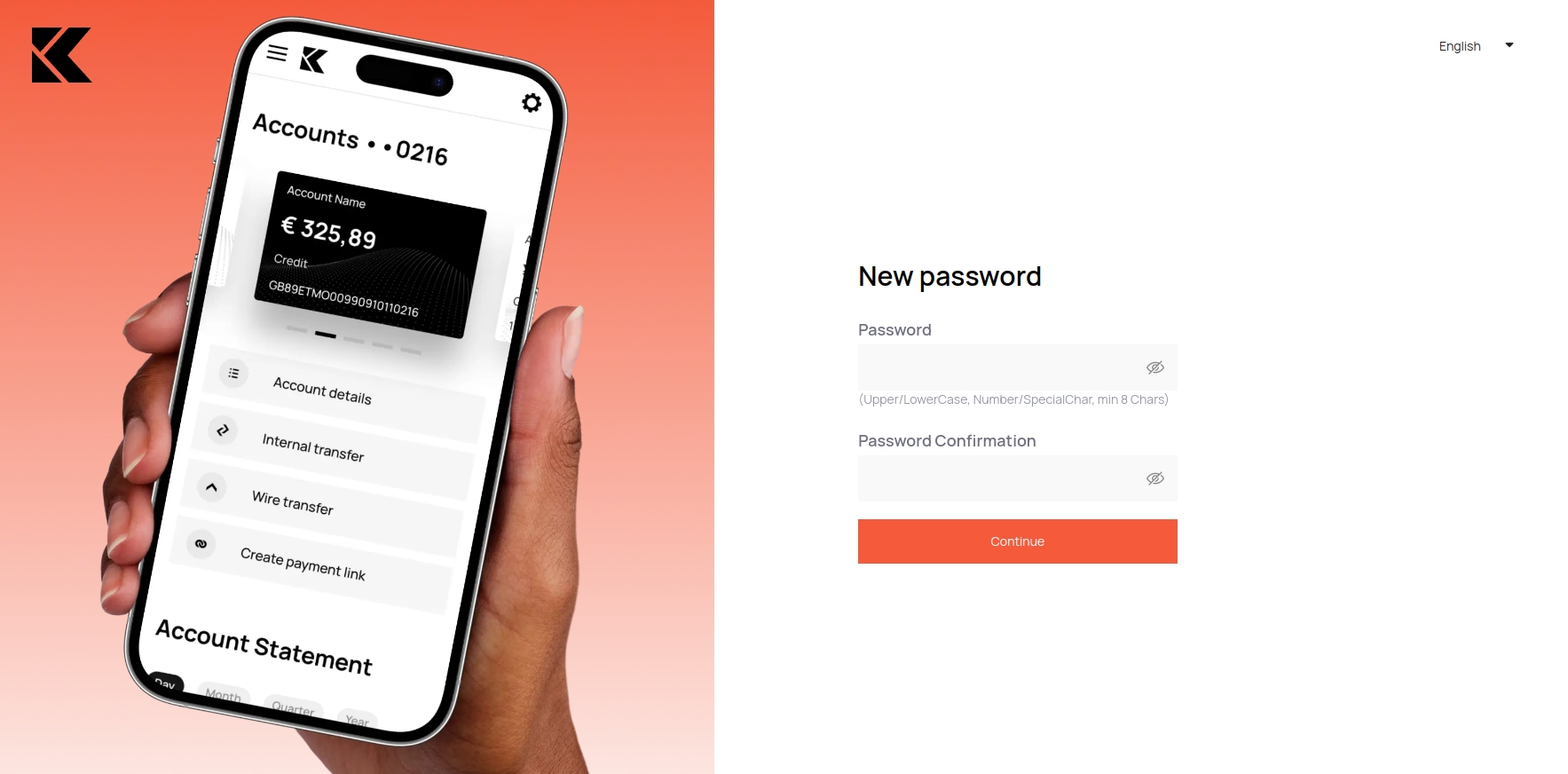
In the window that appears, enter a new password and confirm it. Click the
Continuebutton
Enabling 2FA with Google Authenticator
To enable 2FA Verification, click on the profile button in the upper right corner and select Settings
On the
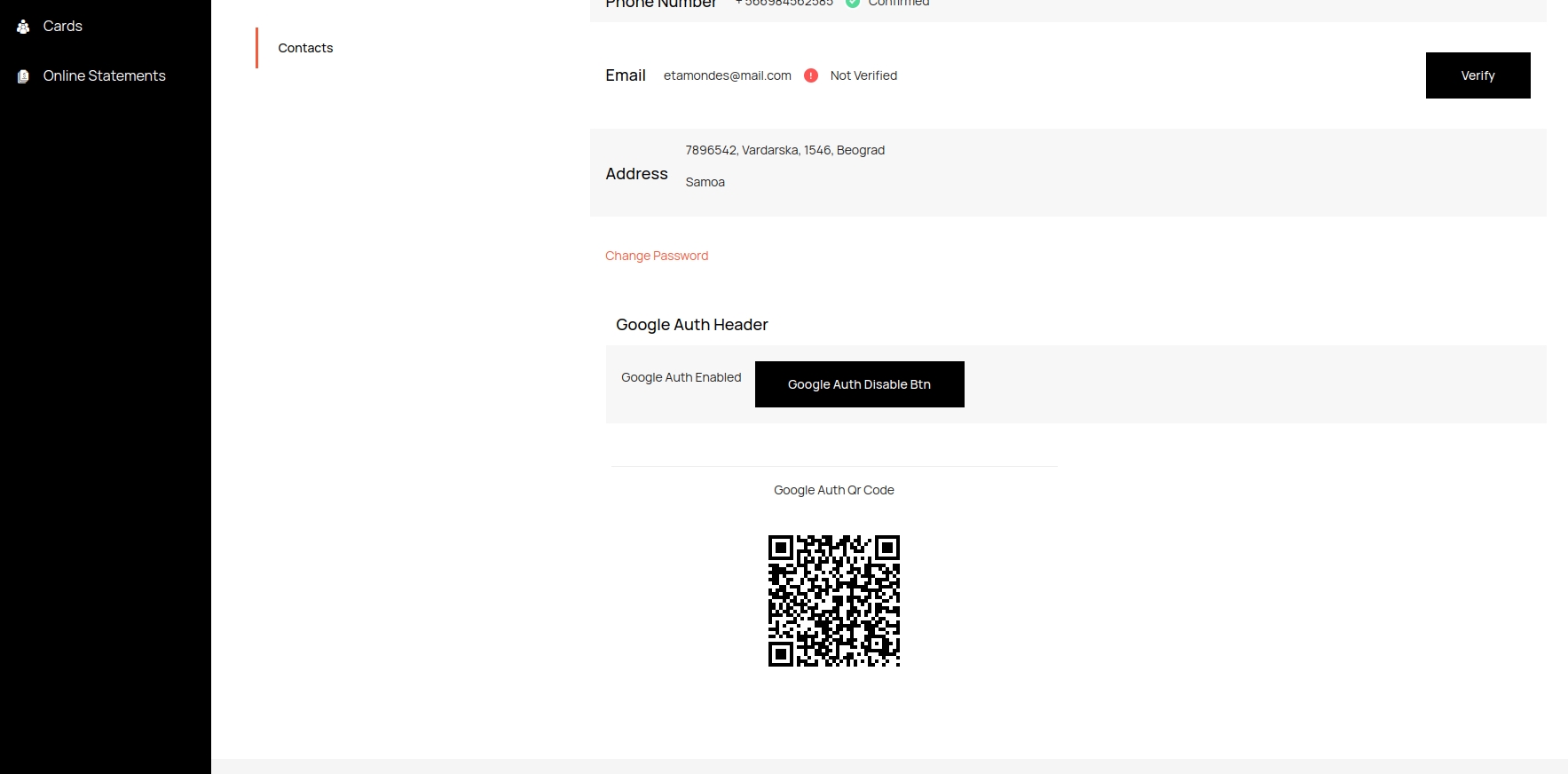
Personal Detailstab, selectContactsand clickGoogle Auth Enable Btn. Your verification is enabled, to add a QR code, go to thePersonal Detailstab again and selectContacts.